Managing Licenses
View license details, download plugins, renew, upgrade, and manage auto-renewal.
The Licenses page shows all your InfusedWoo licenses with their status, plan, and expiration date.
Navigate to Portal > Licenses or visit infusedwoo.com/portal/licenses.
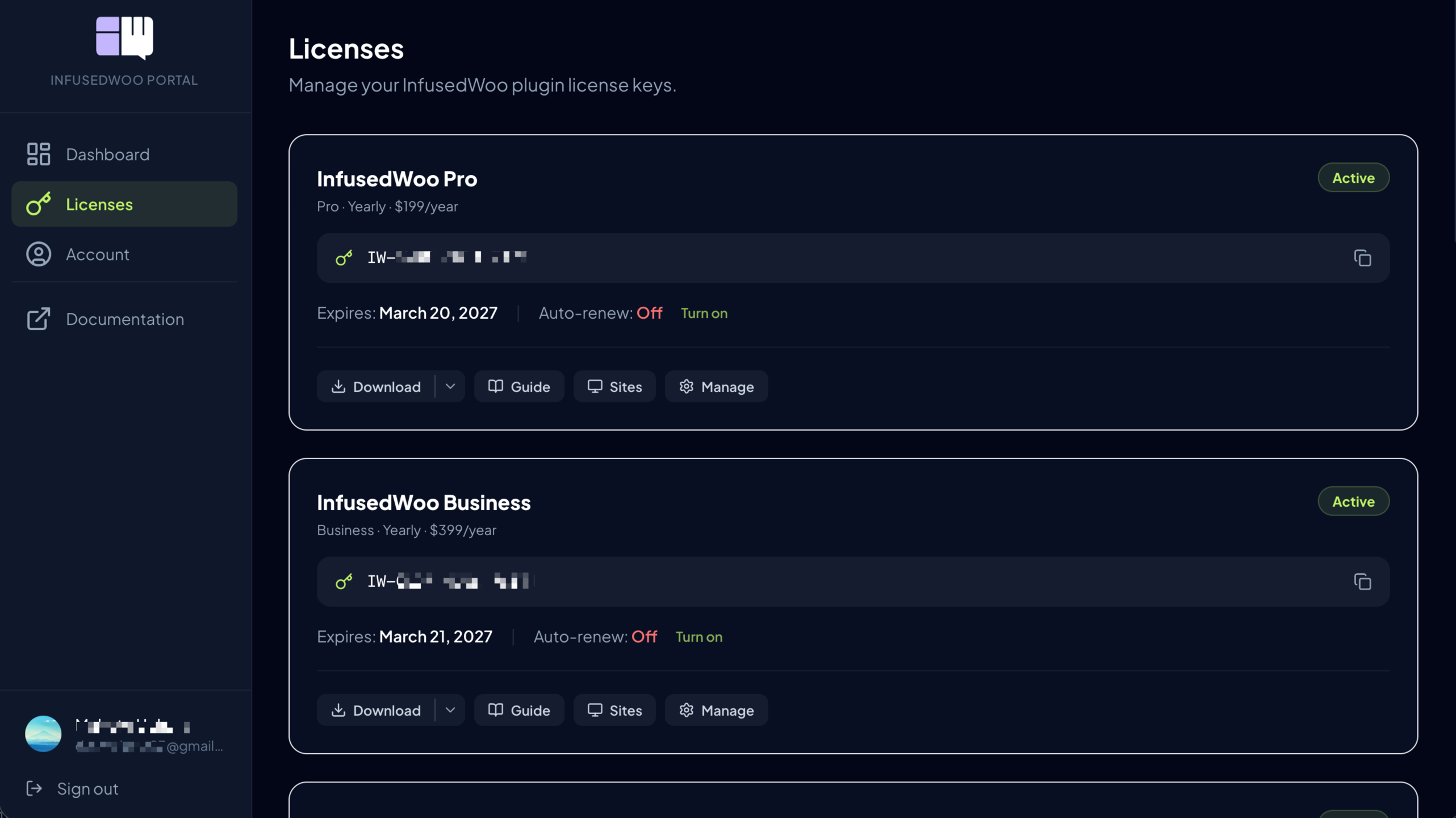
License Card
Each license card shows:
- License key — Your unique key (partially masked for security). Click the copy icon to copy the full key.
- Plan badge — Pro, Business, or Agency
- Status — Active (green), Expired (amber), or Canceled (red)
- Expiration date — When the license expires
- Auto-renew indicator — Shows if automatic renewal is enabled
Action Buttons
Each license card has four action buttons:
| Button | What it does |
|---|---|
| Download | Download the latest plugin version. Click the dropdown arrow for legacy versions. |
| Guide | Link to the installation documentation |
| Sites | Manage which domains are activated on this license |
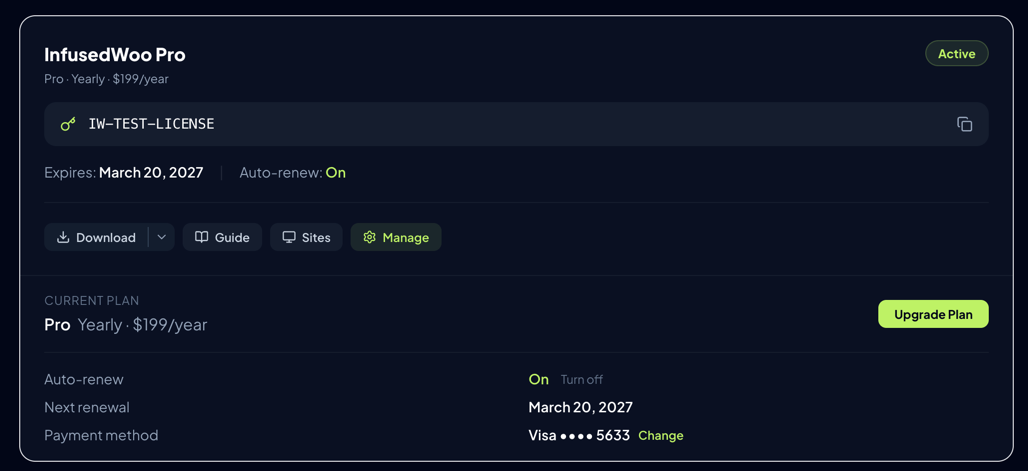
| Manage | Renew, upgrade, or toggle auto-renewal |
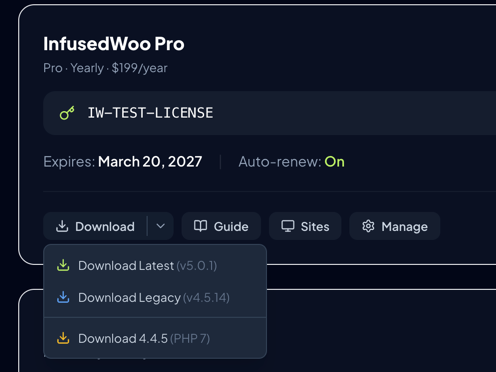
Downloading the Plugin
Click Download to download the latest InfusedWoo version. The dropdown provides:
- Download Latest — The current version (InfusedWoo 5)
- Download Legacy — The previous version (InfusedWoo PRO 4.x)
- Download 4.4.5 (PHP 7) — For sites still running PHP 7
License Details Page
Click a license key to open the full details page. This page shows your license key, plan, status, expiration, download button, and installation guide.
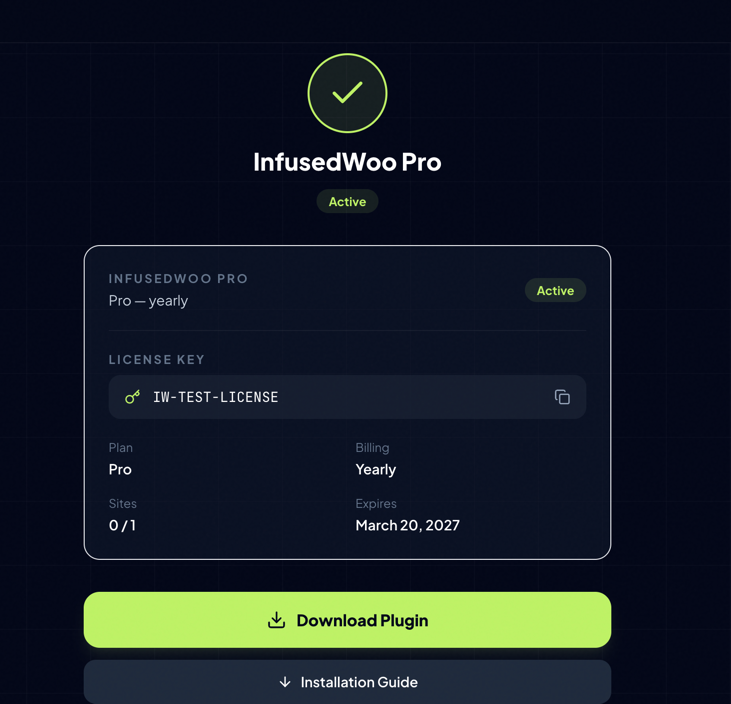
Sharing with Developers & Consultants
If you’re working with a developer or consultant to install InfusedWoo on your site, you don’t need to give them access to your portal account. Instead:
- Click Guide on your license card
- You’ll see a shareable License Page URL — copy it and send it to your developer
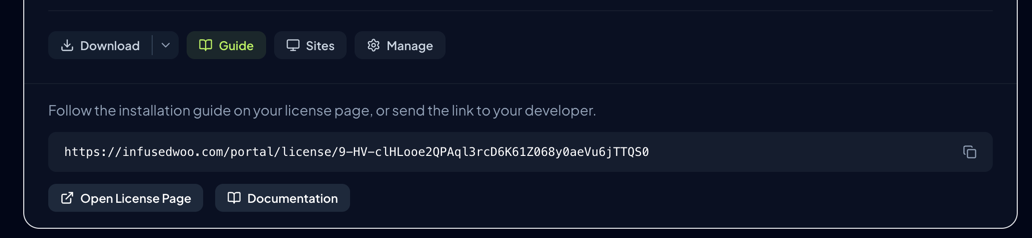
This link opens a page with everything your developer needs:
- Your license key (ready to copy)
- Download button for the latest plugin version
- Step-by-step installation instructions
- Link to the full documentation
No login required — your developer can access this page directly without creating an account. This keeps your portal credentials private while giving them everything they need to install and configure InfusedWoo on your site.
Renewing a License
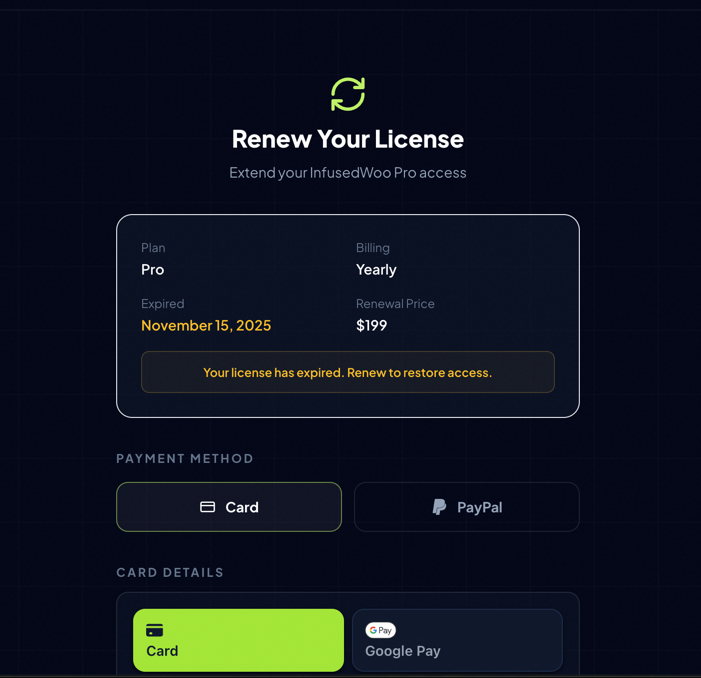
When your license is approaching expiration or has expired:
- Click Manage on the license card
- Click Renew License
- You’ll be taken to the renewal page where you can pay via Stripe (credit card) or PayPal
- Enable Auto-Renew to automatically renew before expiration
Upgrading a License
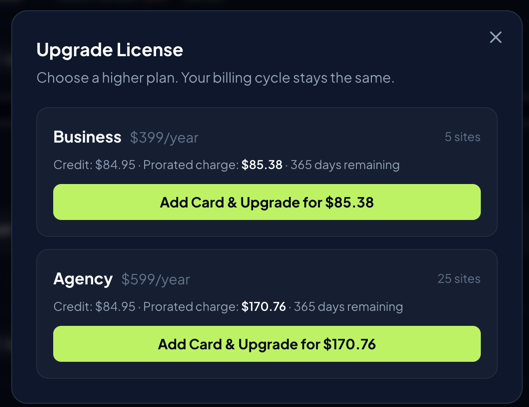
To upgrade from Pro to Business or Agency:
- Click Manage on the license card
- Click Upgrade
- The upgrade modal shows available plans with prorated pricing
- Select a plan and complete payment
Your license plan, site limits, and features update immediately. The billing cycle stays the same.
Auto-Renewal
When auto-renewal is enabled:
- Your license renews automatically before expiration
- Payment is charged to your saved card on file
- You receive a reminder email 30 days before renewal
- You can cancel auto-renewal anytime from the Manage panel
To toggle auto-renewal, click Manage on the license card and use the auto-renew switch.
License Statuses
| Status | Meaning |
|---|---|
| Active | License is valid and working |
| Expired | License has passed its expiration date. Renew to restore access. |
| Canceled | License was canceled. Contact support if you need to reactivate. |